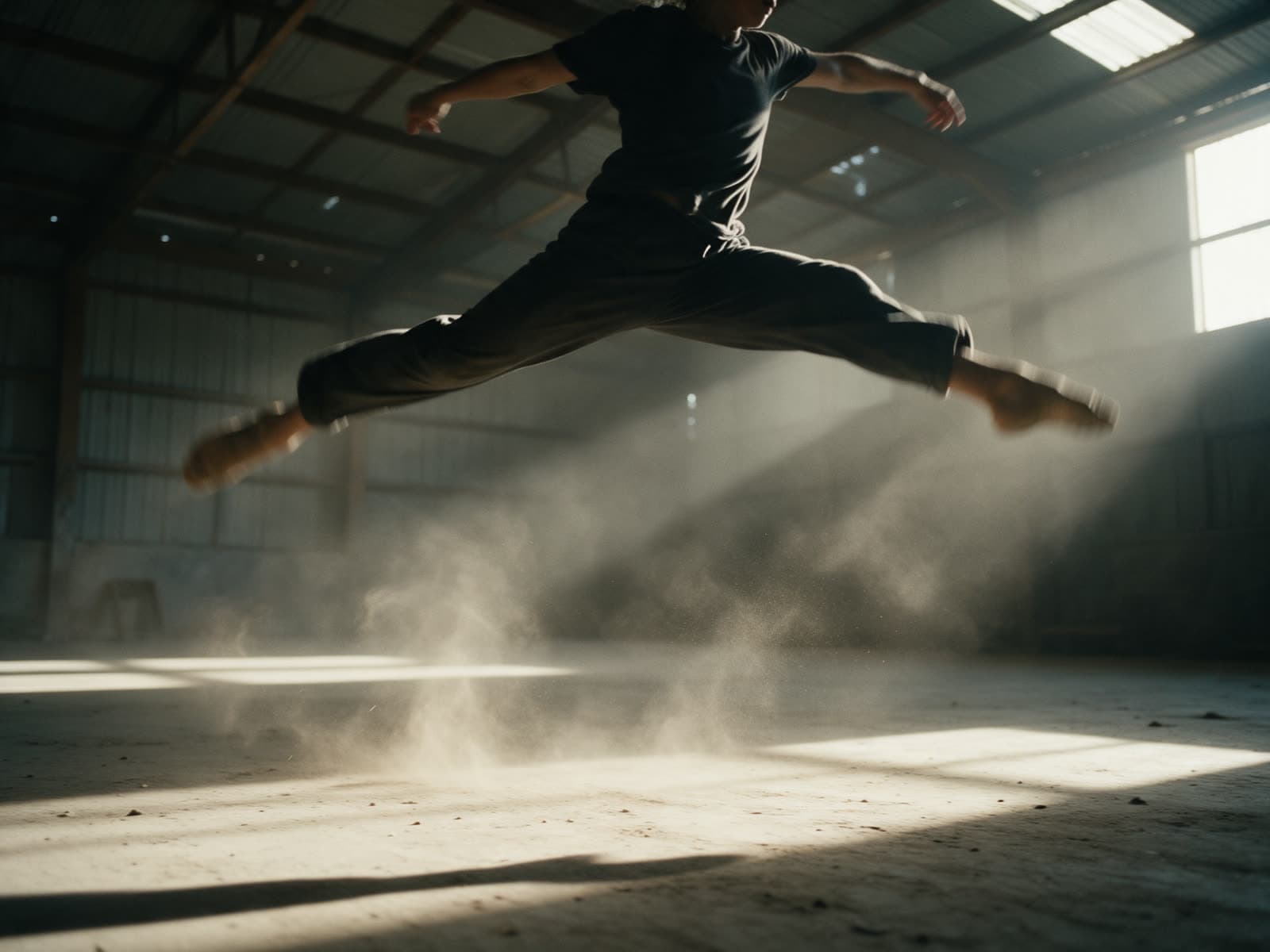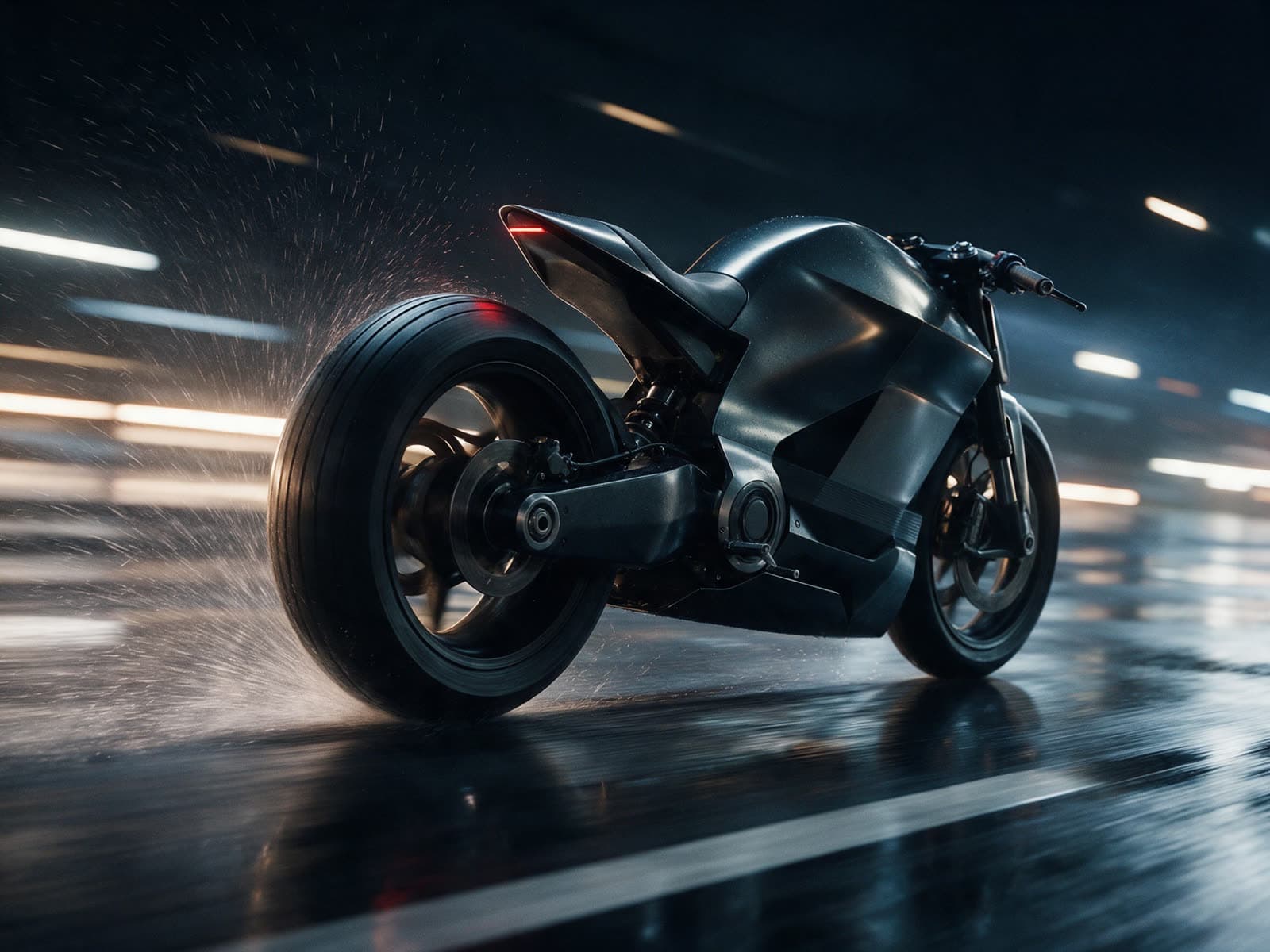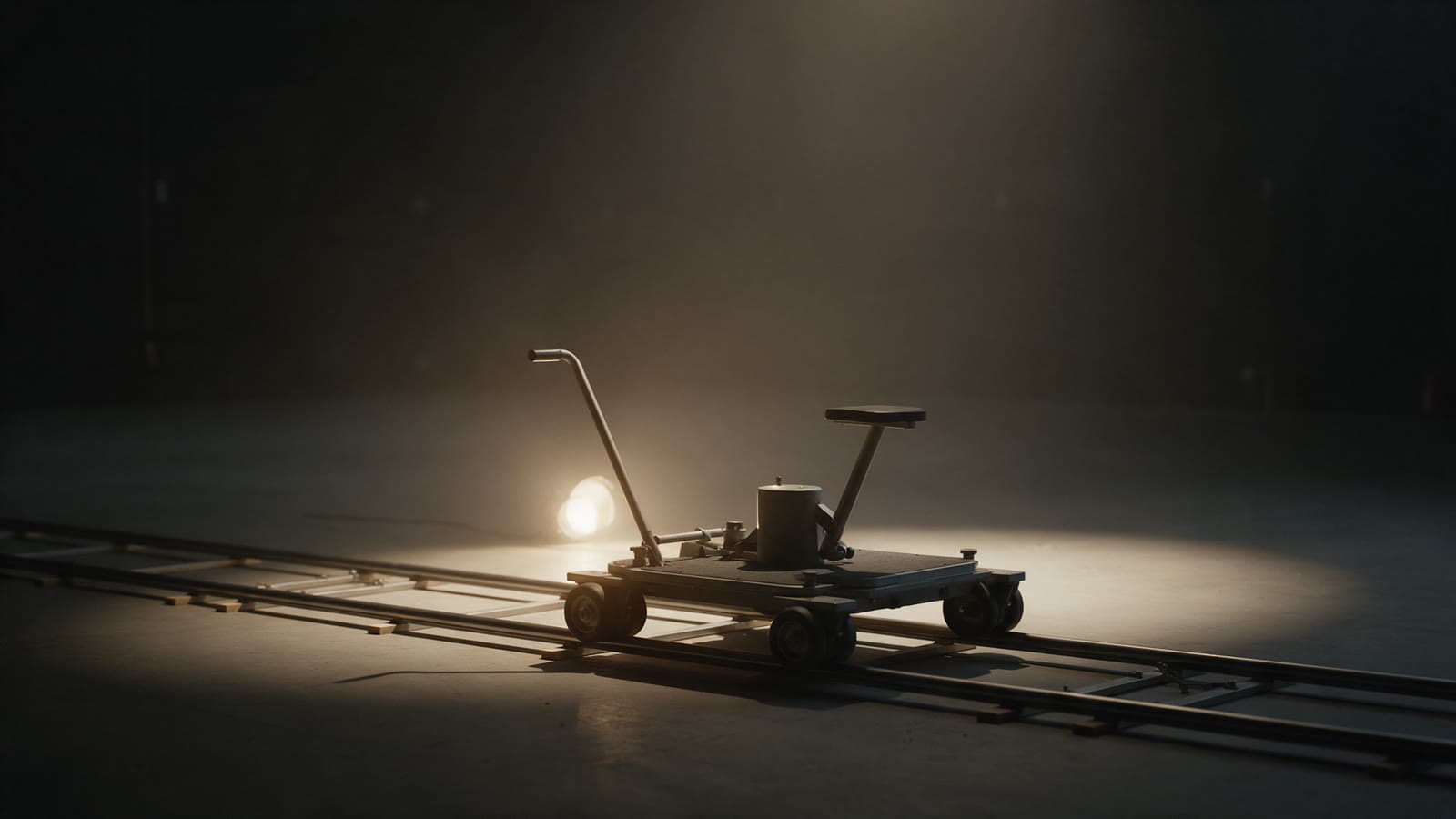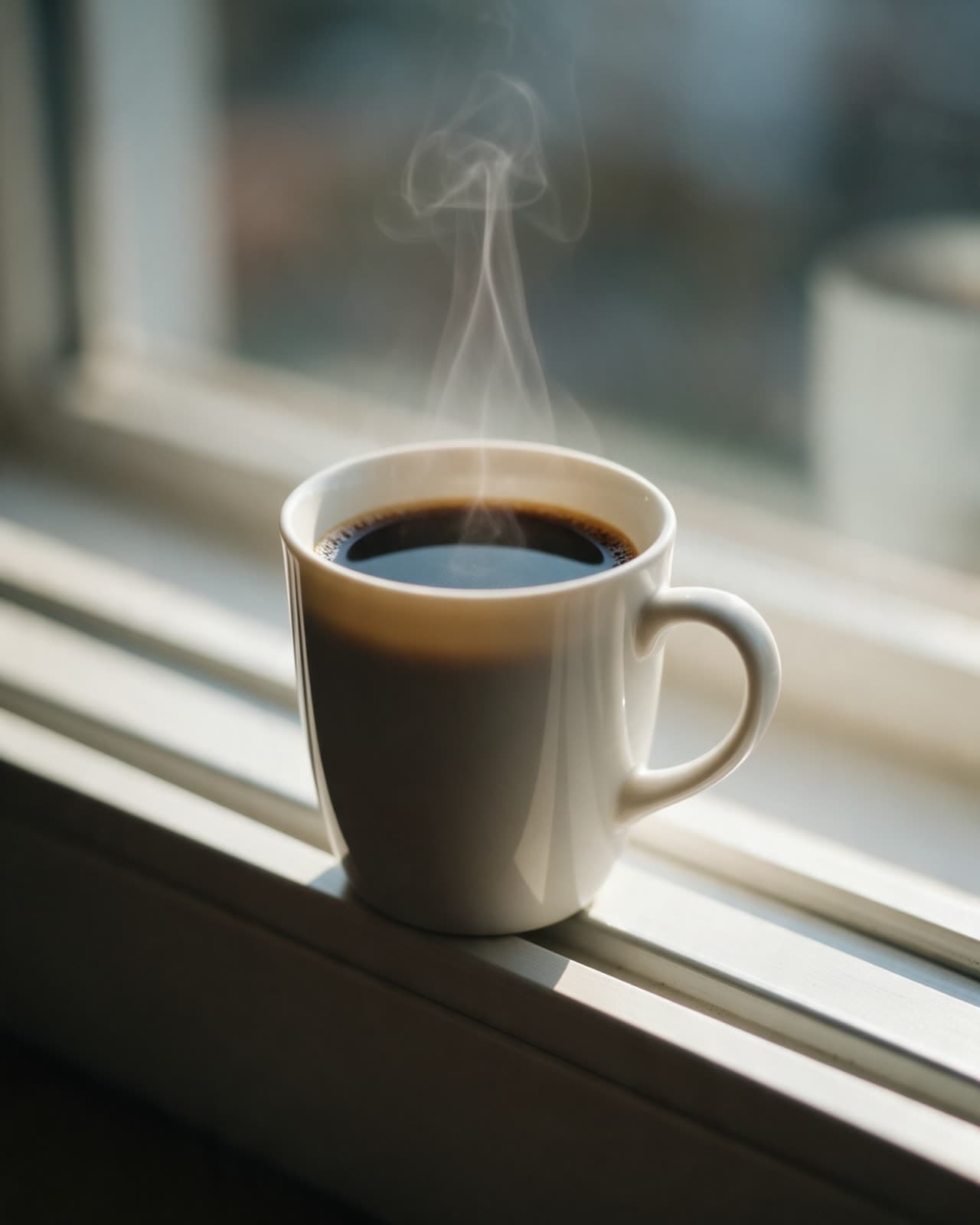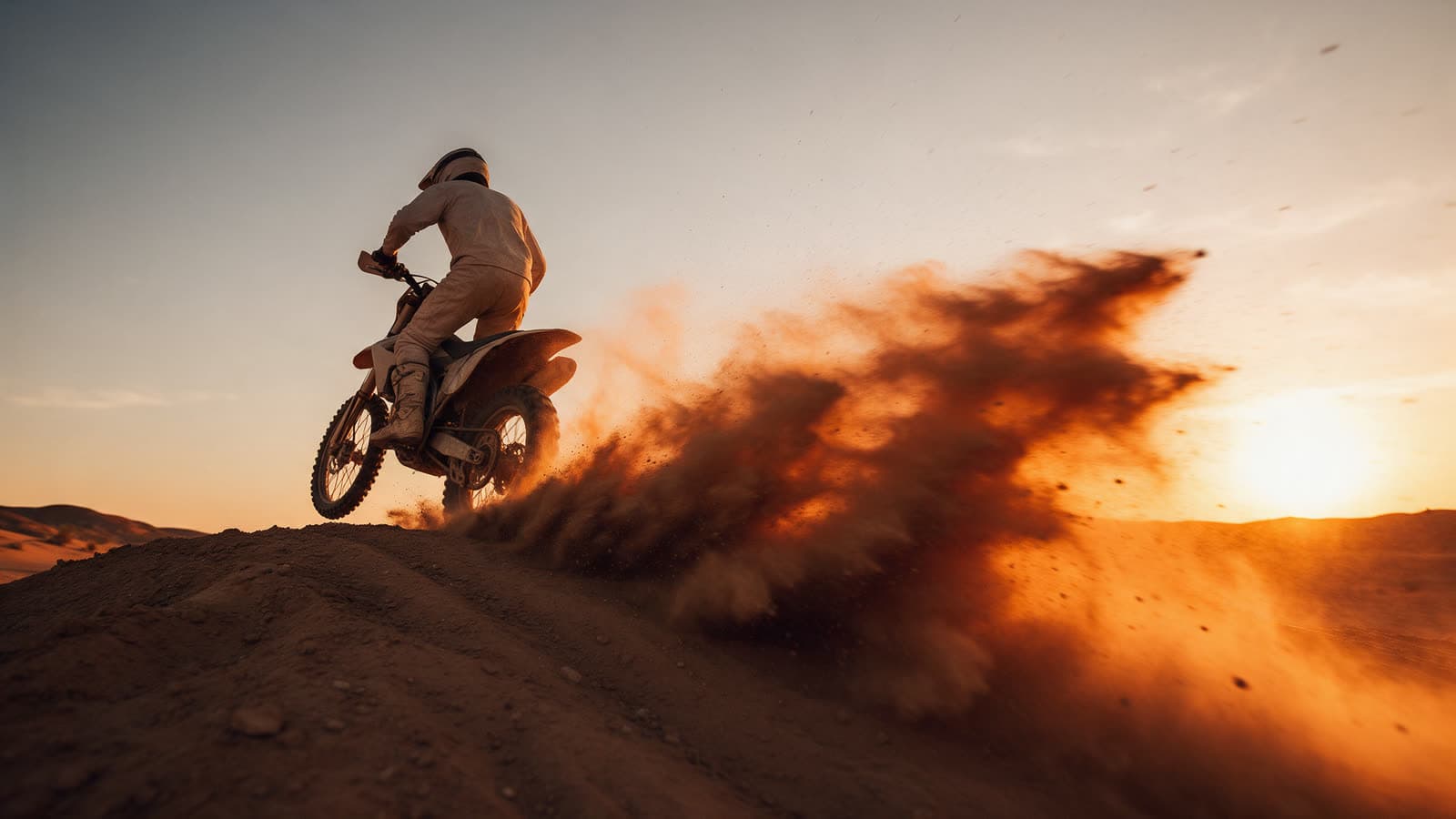
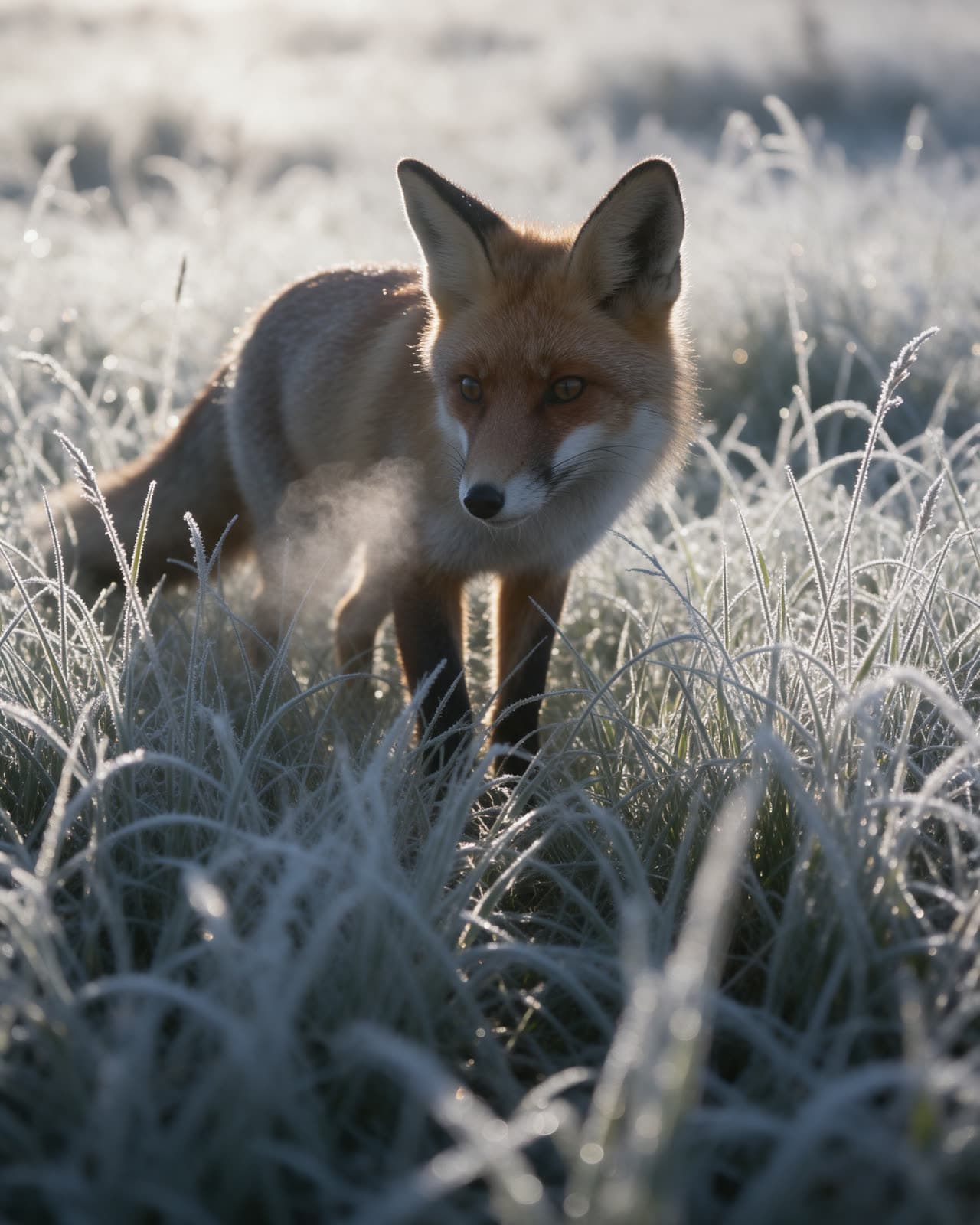
Starting a clip from a still image gives you far more control than starting from text alone. The still fixes the subject, the framing, the color and the light. The video model only has to add motion. That means fewer wasted clips and results that look like what you had in mind.
Pick the right still
- The subject should be clear and not cut off at the edges, so the model knows what can move.
- Leave room in the direction of movement. A runner needs space in front of them.
- Match the aspect ratio to where the clip will go: wide for a site or a film, tall for phone stories and reels.
- Avoid tiny text and fine patterns. They tend to flicker once they move.
You can make the still in the studio first. Generate images until one has the framing you want, then use it as the start of the clip.
Describe one clear motion
The prompt for image to video is mostly about movement. You do not need to describe the subject again in detail, the image already shows it. Say what moves, how, and how fast. One action works best in a short clip.
The rider crests the ridge and the dust plume drifts to the right, slow follow from behind
Keep the camera simple
Pick one camera move or none. A slow push in draws attention to the subject. An orbit shows its shape. A locked off camera keeps the focus on the action. Combining several camera moves in a few seconds usually looks shaky or confused. The motion presets, such as Slow push in and Orbit shot, give you tested camera moves that you can reuse on any subject.
Choose a video model
Check that the model lists Image to video among its modes on its page. Video models differ in how much they move the scene, how well they keep faces and hands stable, and which clip lengths and sizes they offer. Run the same still and prompt on two models to see which motion style suits your work.
Fixing common problems
- Nothing moves: name the moving part directly and give it a verb, such as "the coat flaps in strong wind".
- Too much moves: say what stays still, such as "the background stays still".
- The face changes: choose a still where the face is larger and in sharp focus, and keep the motion gentle.
- The clip feels too fast: add "slow" to both the action and the camera move.
Finish the clip
When the clip is right, the video tools take it further. Extend clip adds more seconds that continue the motion. Upscale video raises the resolution for a bigger screen. Restyle video changes the look while keeping the movement. Each tool lists its cost on its own page.
Every clip you make is saved in your library with its prompt and settings. Open an older clip to see exactly what produced it, then reuse the same still and prompt with one change. Small, deliberate changes teach you more than starting over each time.