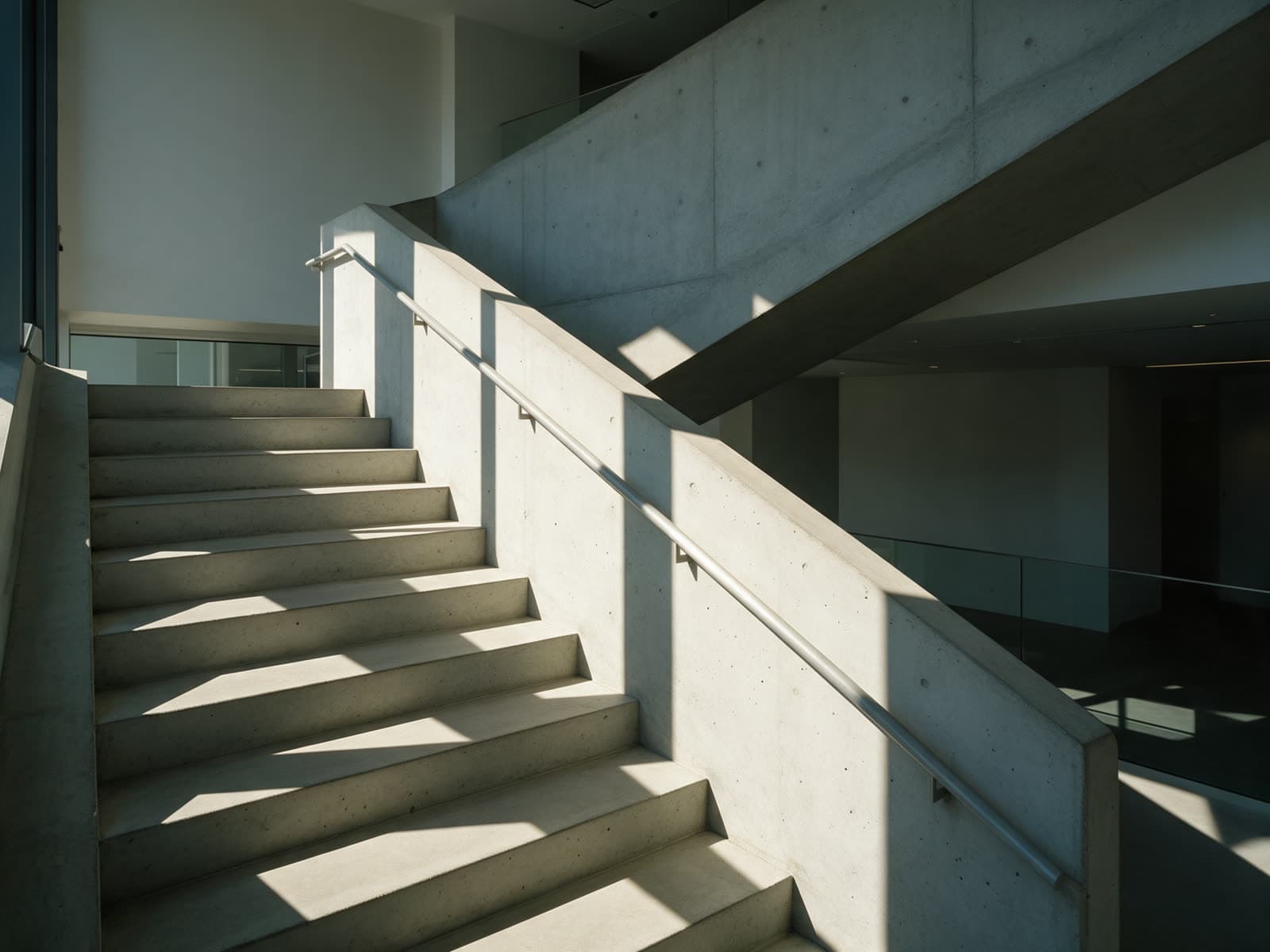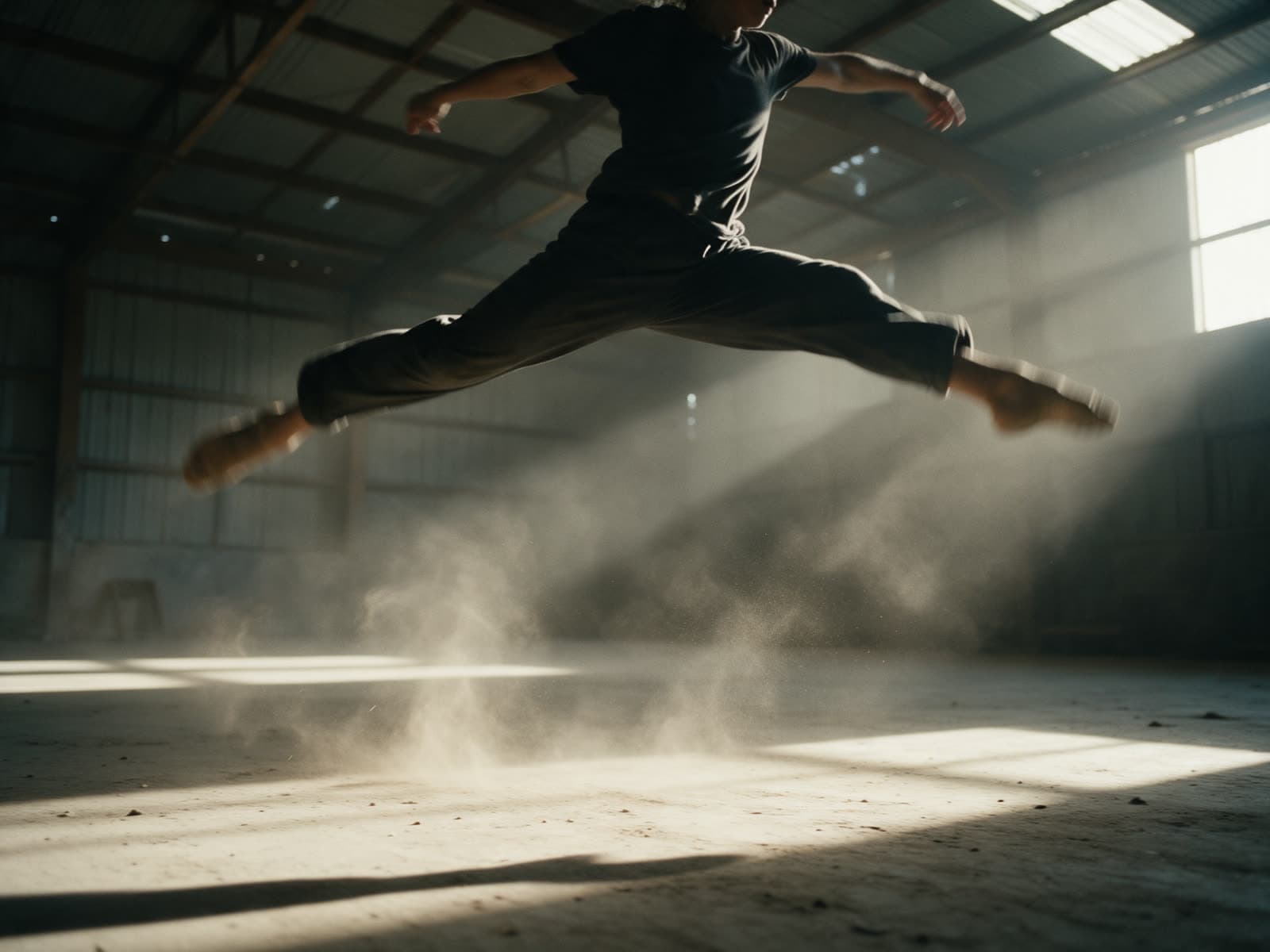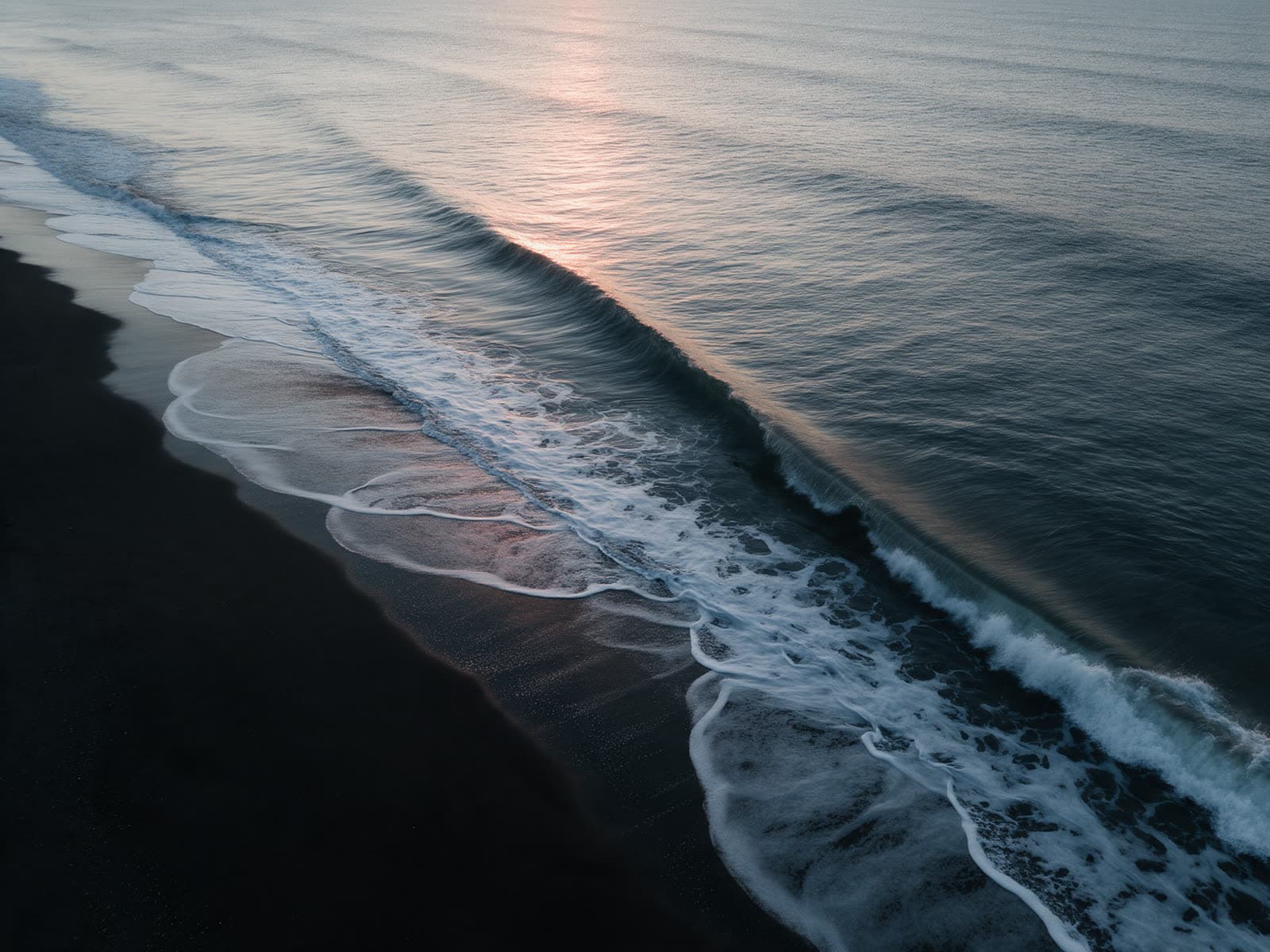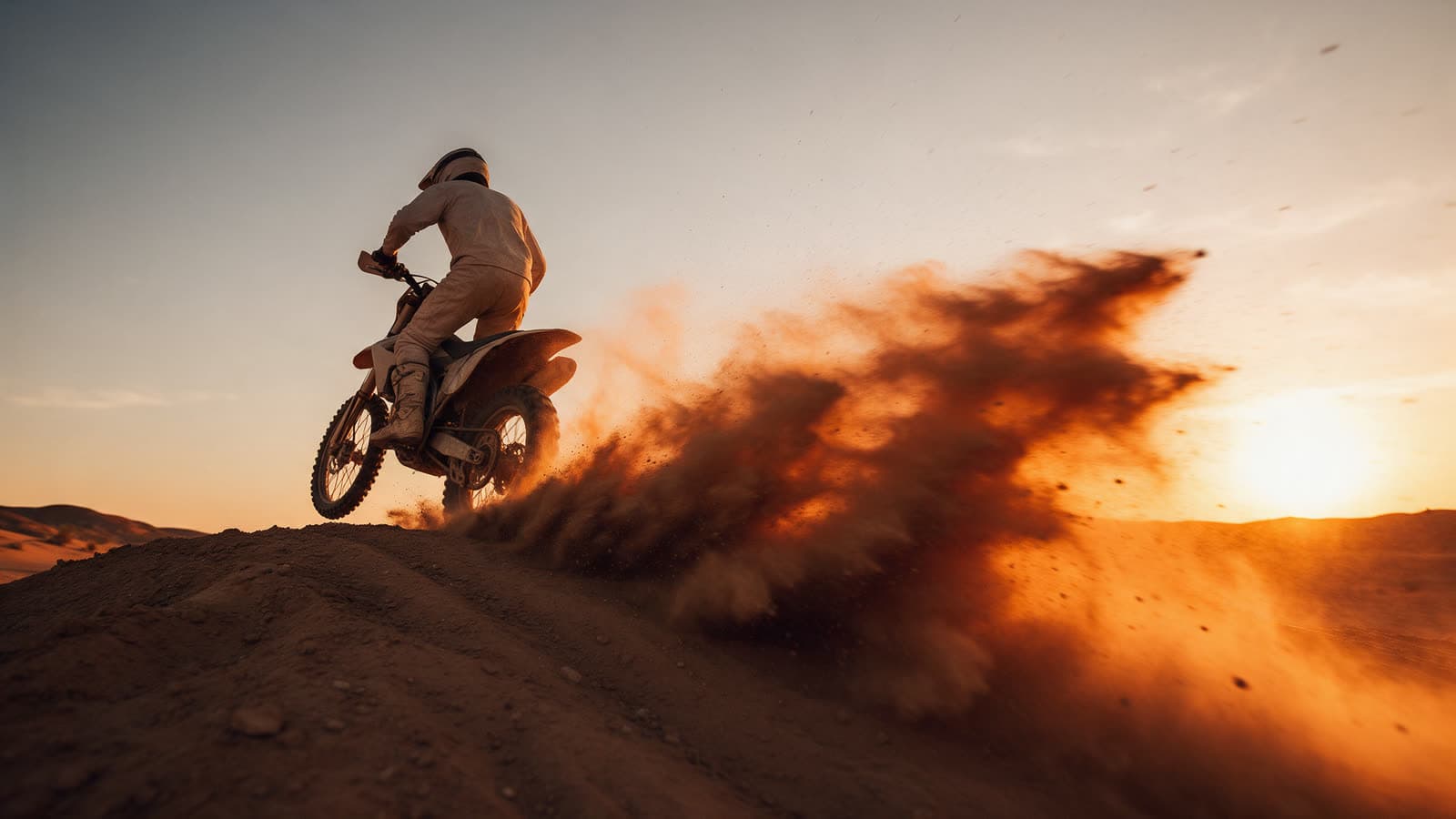
The studio lists image, video and tool models from several makers. They all take a prompt and return a result, but each one has its own strengths, its own look and its own credit cost. Picking well saves you time and credits. This guide gives you a simple way to decide.
Start with the kind of result
- Image models make stills from a prompt, and some can also edit an image you upload.
- Video models make short clips, either from a prompt alone or from a still image you give them.
- Tool models do one job on a file you already have: upscale, cut out the background, expand the frame, relight, extend or restyle a clip.
Use the tabs at the top of the model catalog to see one kind at a time. Each card shows the maker, a one line summary and the credit cost.
Match the model to the job
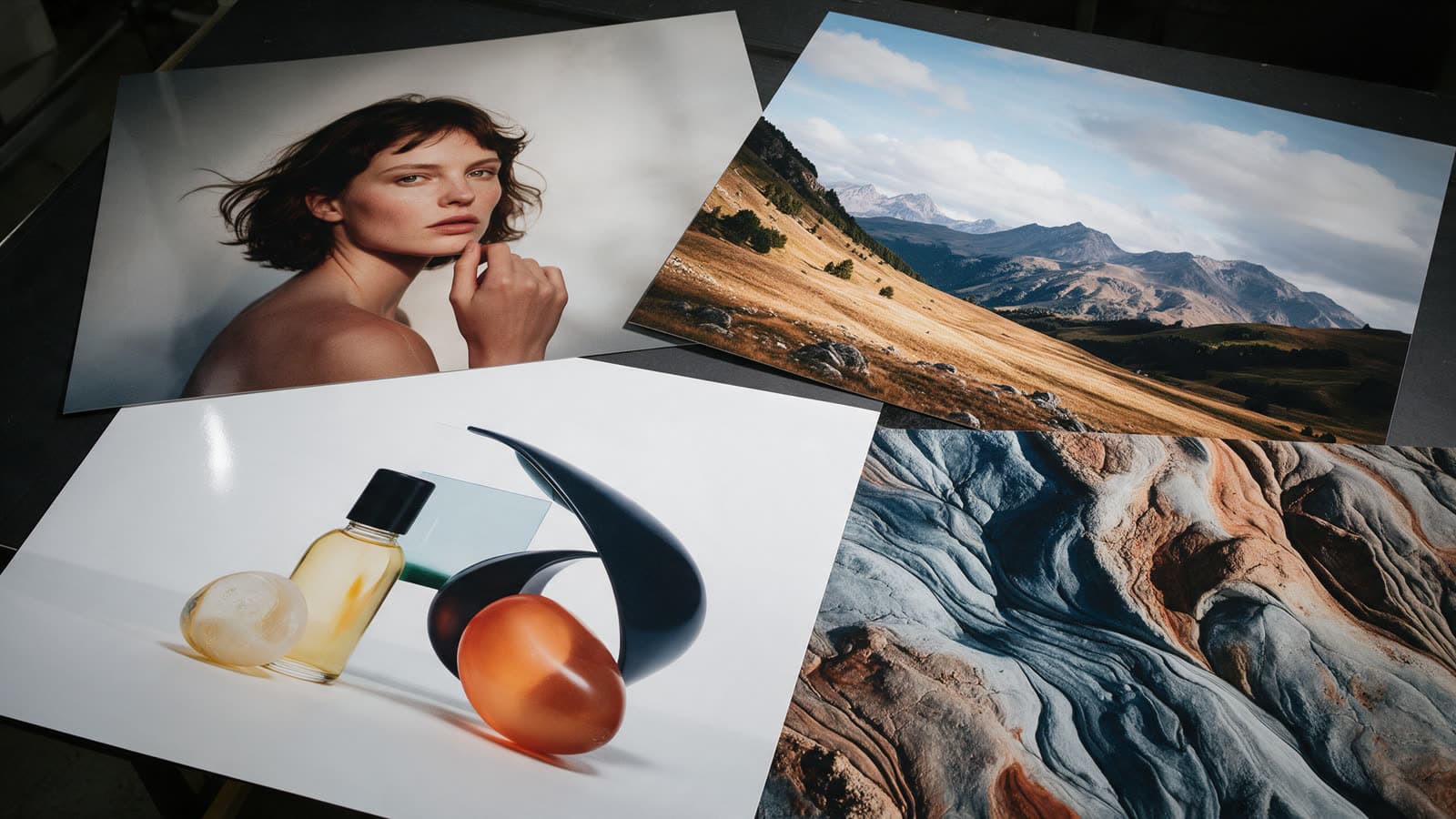
Read the one line summary on each card: it says what the model is good at. Some follow long and detailed prompts closely, which helps with layouts and posters. Some are known for strong photographic color, which suits fashion and editorial work. Some are good at keeping the same character or product across several images. Some are built for text inside images.
- Photos, portraits and fashion: pick a model described as photographic or editorial.
- Posters, labels and anything with words: pick a model described as good with text and layout.
- A character or product that has to look the same in many images: pick a model that edits by instruction and keeps a subject consistent.
- Video from a still: pick a video model that lists Image to video among its modes.
Draft on a cheaper model
Credit costs differ a lot between models, especially for video. A good habit is to explore ideas on a lower cost model, then run the final version on the model whose look you like most. Sort the catalog by lowest cost first to find the draft options. Many makers offer a fast or flash version next to their full model, which is made for exactly this.
For video, drafting matters even more, because video is priced per second. Try the idea at the shortest clip length first. When the motion and framing are right, make the longer or higher quality version.
Compare with the same prompt
The quickest way to learn the models is to run one prompt on two or three of them. Keep the prompt, the aspect ratio and the settings the same, and change only the model. The differences in color, detail and how closely each one follows your words become obvious in a few runs.
Close portrait in profile, wet slicked hair, flat dark green backdrop, one soft key light
Run it here, then switch the model in the studio and run it again.
Read the model page
Every model has its own page with sample outputs, a specs table and a few prompts to try. The specs list the aspect ratios, the clip lengths for video, the output sizes and whether you need to upload a file. The page also shows how far each plan's monthly credits go on that model, which helps when you are choosing a plan too.
Models change often. New versions arrive and older ones are retired. The catalog marks new models, so check it from time to time, and do not be afraid to try one you have not used yet.